
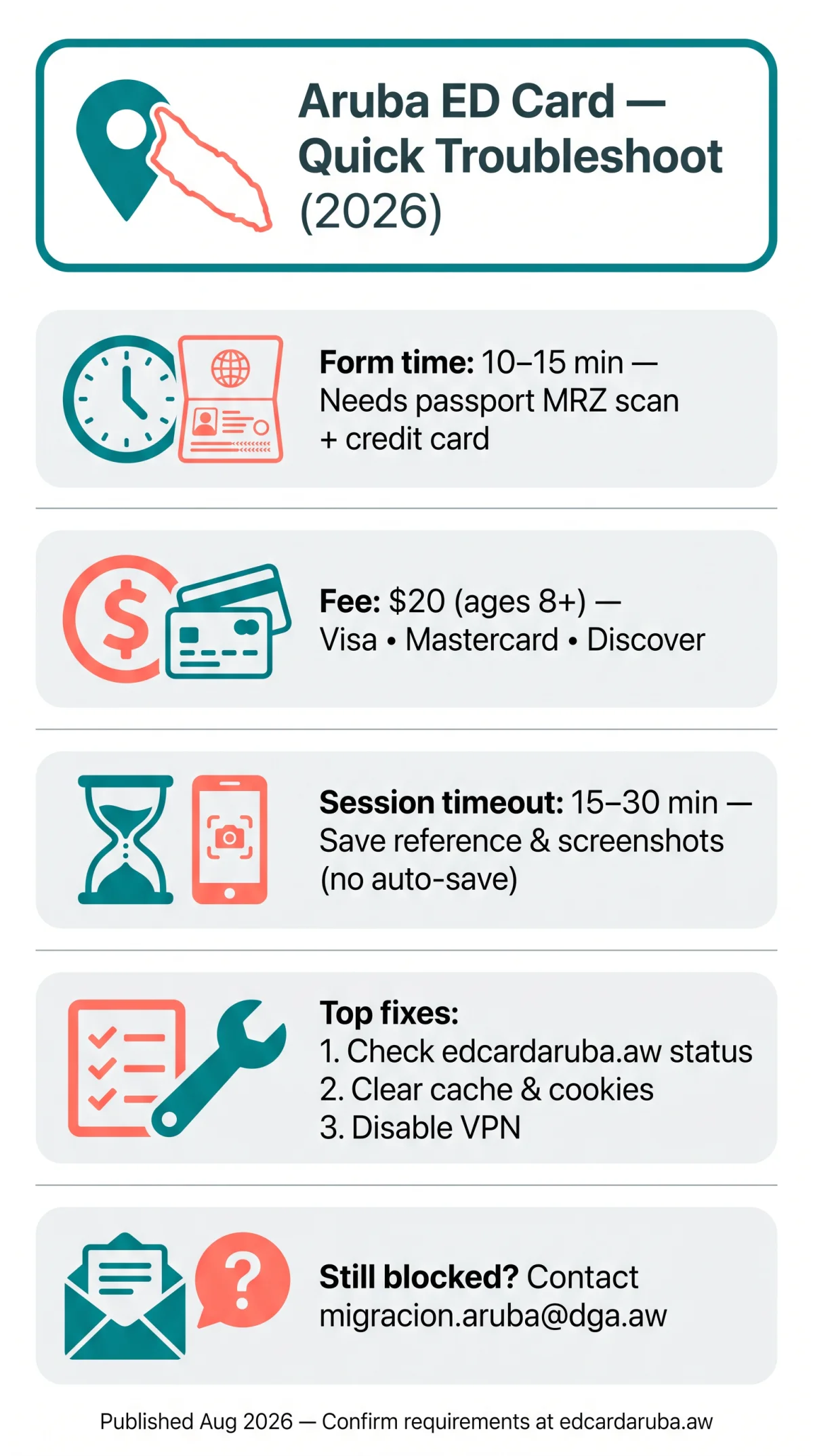
The Aruba Online ED Card (Embarkation/Disembarkation form) is a mandatory pre-travel authorization for all tourists entering Aruba for more than 24 hours, providing immigration preclearance before arrival. If you are wondering why is my Aruba Online ED card not working, the most common causes are website downtime, session timeouts, browser incompatibility, and CAPTCHA failures. The form takes approximately 10 to 15 minutes to complete and requires a valid passport with an MRZ scan and a credit card for the $20 Sustainability Fee (Visa, Mastercard, or Discover). Confirmation arrives by email with a green checkmark and a QR code; without it, you risk denied boarding at check-in.
Published: August 2026 | Last reviewed: August 28, 2026. Prepared by our travel technology editorial team and verified against the official Aruba immigration portal at edcardaruba.aw. Requirements and fees may change; confirm on the official portal before travel.
Aruba ED Card Website Down and Connection Fixes
The Aruba ED Card portal at edcardaruba.aw can go offline due to server errors or scheduled maintenance; corrupted cache and active VPNs also block loading. Verify the portal status and retry after 15 to 30 minutes. Always use the .aw domain, as third-party scam websites mimic the Aruba ED Card form to harvest payment details.
Check portal status
Use Downdetector or IsItDownRightNow to confirm whether edcardaruba.aw is down. A 500 Internal Server Error or Bad Request indicates a server-side issue; wait 15 to 30 minutes.
Clear cache and cookies
Corrupted browser data causes loading loops. Open your browser settings, clear cache and cookies, then perform a hard refresh.
Disable your VPN
Active VPNs route traffic through international servers, which the portal security filters may block. Turn off your VPN to establish a direct connection.
Aruba ED Card Session Timeout and Browser Compatibility
The Aruba ED Card form session times out after approximately 15 to 30 minutes of inactivity, erasing unsaved data and requiring a full restart. The Aruba ED Card portal does not auto-save; save your reference number and take screenshots of each step to avoid losing progress.
The platform was updated on 30 October 2024 and supports Google Chrome, Safari, Firefox, and Edge on computers, tablets, and smartphones. Safari users should disable auto-fill before starting, as it conflicts with the passport MRZ scan fields and causes a form validation error. The $20 Sustainability Fee payment step is especially sensitive to mobile browser interruptions.
| Browser | Known Issues | Workaround |
|---|---|---|
| Chrome | None commonly reported | Most reliable choice for the Aruba ED Card form |
| Safari | Auto-fill overwrites MRZ passport fields | Turn off auto-fill in Settings before starting |
| Firefox | Tracking protection may block CAPTCHA | Disable Enhanced Tracking Protection for the session |
| Edge | Pop-up blockers interrupt payment step | Allow pop-ups for the ED card portal |
CAPTCHA Failures and Sustainability Fee Payment Errors
Aruba ED Card CAPTCHA failures are typically caused by ad-blockers, VPNs, or tracking protection that prevent reCAPTCHA from loading or validating. The $20 Sustainability Fee payment on the Aruba ED Card portal can also be declined due to 3D Secure blocks on US-issued cards.
- CAPTCHA not loading: Ad-blockers, tracking protection, and VPNs block the reCAPTCHA. Disable them and reload the page.
- reCAPTCHA verification loop: If the CAPTCHA keeps resetting, clear your browser cache and cookies, then retry on an updated Chrome or Firefox browser. Mobile Safari users should switch to a desktop browser.
- Sustainability Fee payment declined: The $20 fee applies to travelers aged 8 and older. Exemptions ($0): children under 8, transit passengers staying under 24 hours, Aruba residents, travelers returning within one year, and crew members on duty. Accepted cards: Visa, Mastercard, Discover.
- 3D Secure error resolution: US-issued cards may trigger 3D Secure international transaction blocks. Contact your card issuer to authorize the charge, then retry. If the card is still rejected, try a different accepted card brand before contacting DIMAS at [email protected].
Aruba ED Card Data Errors and DIMAS Contact
Passport data entry errors, special characters in names, and incorrect email addresses are common reasons the Aruba ED Card application fails or confirmation emails never arrive.
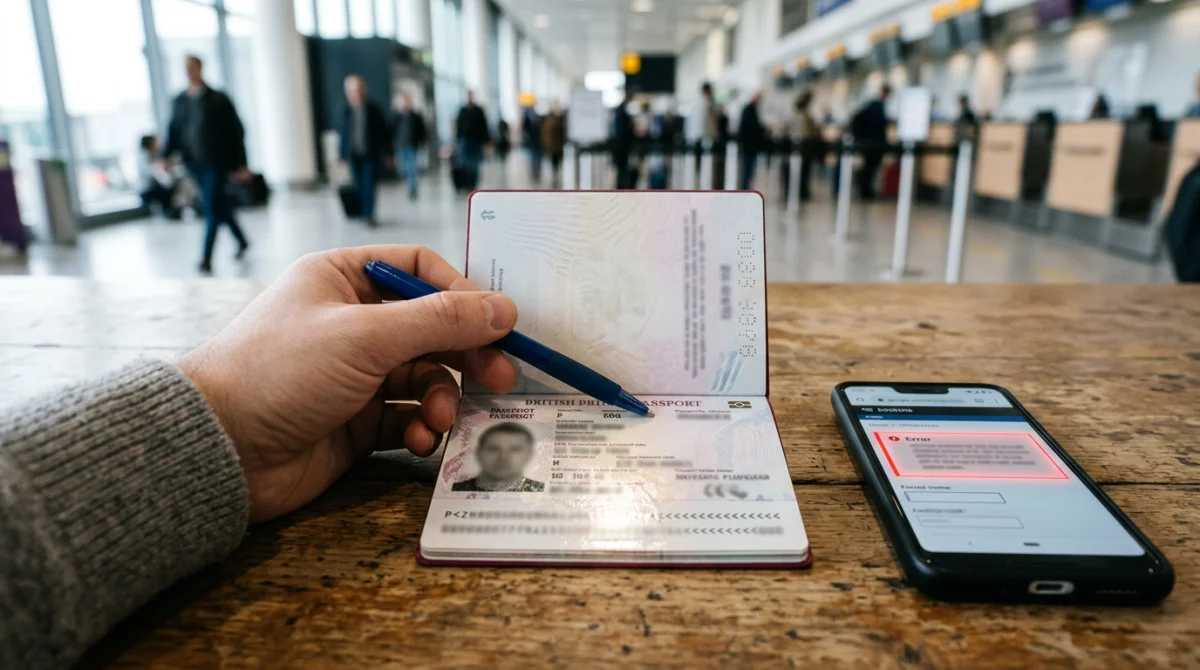
MRZ scan failures are a leading cause of rejected Aruba ED Card applications. If your passport photo has glare, blur, or cropping, the system cannot read the Machine Readable Zone and blocks submission. When entering your name manually, avoid special characters: apostrophes (O’Brien becomes O Brien) and hyphens may trigger a form validation error. Confirm that your passport number, expiry date, and country of issue match your document exactly.
An incorrect email blocks delivery of the green checkmark and QR code, risking denied boarding. Verify the address before submitting the Aruba ED Card form.
For unresolved technical issues, contact Aruba’s Department of Immigration (DIMAS) at [email protected] or the portal support team at [email protected]. Include your reference number, passport details, and a description of the error. For additional travel requirements, see the Aruba tourism portal at aruba.com. You can also reach out through the Aruba ED Card customer service channels for further assistance.
FAQ
How long does the Aruba ED card process take in 2026?
Completing the Aruba ED Card form takes approximately 10 to 15 minutes. Processing and email confirmation with a QR code are typically delivered within minutes to a few hours. Delays can occur during peak travel periods. You can submit the form up to 7 days before your departure date.
What happens if my Aruba ED card application is rejected?
A rejected Aruba ED Card application usually means incorrect passport data, an unsupported document photo, or a form validation error. You can reapply immediately after correcting the errors. The $20 Sustainability Fee may need to be paid again depending on where the failure occurred.
Can I apply for the Aruba ED card on my phone?
Yes. The Aruba ED Card portal works on mobile browsers including iOS Safari and Android Chrome. However, mobile users often encounter CAPTCHA issues and auto-fill conflicts. A desktop browser with updated Chrome, Safari, Firefox, or Edge is recommended for the smoothest experience.
Is the Aruba ED card the same as a visa?
No. The Aruba ED Card is a mandatory travel authorization, not a visa. It does not guarantee entry into Aruba. Final admission is determined by Aruba immigration officers upon arrival. US citizens can stay up to 90 days visa-free but still must hold a valid ED Card.
Do infants and cruise passengers need an Aruba ED card?
Yes. Every person entering Aruba for more than 24 hours must have a valid Aruba ED Card, including infants and children. Cruise ship passengers going through Aruba immigration are also required to hold one. A parent or guardian can complete the form on behalf of a minor.
How do I check if the Aruba ED card website is down?
Use a site status tool such as Downdetector or IsItDownRightNow to verify whether edcardaruba.aw is experiencing downtime. Error messages like 500 Internal Server Error or Bad Request indicate server-side issues on the Aruba ED Card portal.
I did not receive my Aruba ED card confirmation email. What should I do?
Check your spam or junk folder first. If the confirmation with the green checkmark and QR code is not there, verify that the email address you entered was correct. You can reapply or contact DIMAS at [email protected] for assistance with your lost reference number.
Can I edit my Aruba ED card after submission?
No. You cannot edit a submitted Aruba ED Card. If you notice an error after submitting, you may need to apply again or contact Aruba immigration directly at [email protected] to request corrections.
What browser works best for the Aruba ED card in 2026?
Google Chrome in its latest version is the most reliable choice for the Aruba ED Card portal. Ensure that Safari, Firefox, or Edge is updated to the latest version before starting your application.