

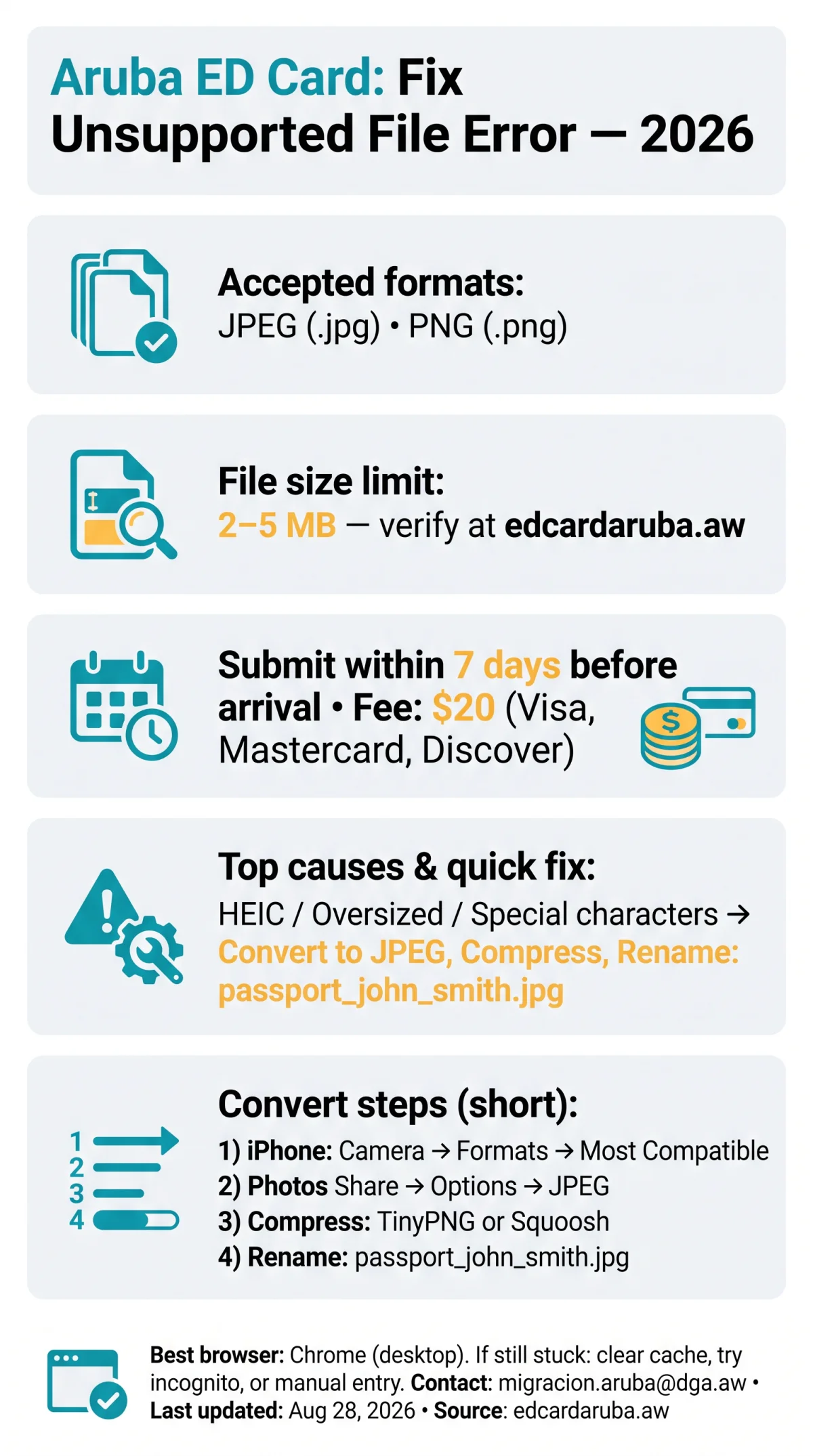
The Aruba ED Card portal accepts JPEG (.jpg) and PNG (.png) files only. An Aruba ED Card unsupported file error means your image is likely HEIC, exceeds the 2 MB to 5 MB limit, or has special characters in the filename. The Embarkation/Disembarkation (ED) Card is mandatory for all inbound air travelers, must be submitted within a 7-day window before arrival, costs a $20 sustainability fee (Visa, Mastercard, Discover), and a confirmation is sent by email. The ED Card is not a visa and does not guarantee entry.
The Aruba ED Card accepts JPEG (.jpg) and PNG (.png) uploads in 2026. Each file must be under the size limit posted at edcardaruba.aw. If you see “unsupported file,” your image is likely HEIC (iPhone default), oversized, or has special characters in the filename. Convert to JPEG, compress, and rename to
passport_john_smith.jpgto fix the error.
Last updated: August 28, 2026. This is an unofficial guide for travelers; file size limits and accepted formats were verified against edcardaruba.aw on this date.
What File Types Does the Aruba ED Card Accept?
The Aruba ED Card portal accepts JPEG (.jpg) and PNG (.png) only; HEIC, TIFF, BMP, and PDF trigger the unsupported file error. iPhones save photos in HEIC by default, which the Aruba ED Card portal may not recognize, making it the #1 cause of the error for US travelers. Renaming a file extension does not bypass the system. The file size limit is typically 2-5 MB per upload (verify the current 2026 cap at edcardaruba.aw).
| Format | Extension | Supported? | Notes |
|---|---|---|---|
| JPEG | .jpg / .jpeg | ✅ Yes | Recommended – smallest file size |
| PNG | .png | ✅ Yes | Acceptable but larger files |
| HEIC | .heic | ⚠️ Maybe | May fail on some browsers; convert to JPEG |
| TIFF | .tiff | ❌ No | Not accepted |
| BMP | .bmp | ❌ No | Not accepted |
| ❌ No | Not accepted for passport photo uploads |
The Aruba ED Card File Size Limit in 2026
The Aruba ED Card portal typically rejects files exceeding 2-5 MB. Check your file size: Windows, right-click, Properties; Mac, right-click, Get Info. On iPhone or Android, view file details in the Photos app. Use free image compression tools like TinyPNG.com or Squoosh to compress before uploading to the Aruba ED Card portal. macOS Preview also compresses images for free.
How to Convert HEIC to JPEG for the Aruba ED Card
The Aruba ED Card unsupported file error is triggered by HEIC format, the default on iPhones. This is the #1 cause of the error for US travelers. Converting HEIC to JPEG and compressing below the Aruba ED Card size limit resolves the issue in under 60 seconds.
Change iPhone Settings
Camera, Formats, Most Compatible to save photos as JPEG permanently
Convert Existing Photos
Open in Photos app, tap Share, select Options, choose JPEG
Compress the JPEG
Compress to under 2-5 MB using TinyPNG.com or Squoosh
Rename the File
Rename to passport_john_smith.jpg (no spaces or special characters)
Aruba ED Card Upload Troubleshooting
If the Aruba ED Card upload fails, the portal rejects files over 2-5 MB or in unsupported formats. Every Aruba ED Card upload error traces to one of five causes: wrong format, oversized file, special characters in filename, browser issues, or poor image quality. Clear your browser cache and cookies if the upload button freezes or times out. If you’re experiencing broader portal issues, see our guide on why the Aruba online ED Card is not working. An invalid travel date error may also appear if your device clock is set incorrectly.
| Error Message | Meaning | Fix |
|---|---|---|
| Unsupported file type | Wrong format (HEIC, TIFF, PDF) | Convert to JPEG or PNG |
| File too large | Exceeds the MB limit | Compress with TinyPNG or Squoosh |
| Upload failed | Browser or connection issue | Clear cache, switch to Chrome desktop |
| Invalid image | Blurry photo or MRZ glare | Retake passport photo in even lighting |
Aruba ED Card Passport Photo Quality Checklist
A valid Aruba ED Card passport photo requires all four corners of the bio page visible, no glare on the machine-readable zone (MRZ), even lighting with no shadows, and at least 300 DPI resolution. No filters or cropping that cuts off data. Lay the passport flat on a dark surface and photograph from directly above in natural light. The Aruba ED Card system uses RADEX BCMS for processing, so image legibility is critical for automatic parsing. For the full list of documents needed for your Aruba ED Card application, make sure your passport photo meets these standards before you begin.
Best Browser and Device for Aruba ED Card Uploads in 2026
Google Chrome on desktop is the most reliable browser for Aruba ED Card uploads in 2026. Mobile uploads often fail due to HEIC and camera-capture issues. If the Aruba ED Card upload fails, clear your browser cache and cookies, try incognito mode to rule out extension conflicts, or switch from mobile to a desktop computer. Ensure stable Wi-Fi; uploads over spotty cellular may time out.
| Browser | Device | Reliability | Tip |
|---|---|---|---|
| Chrome | Desktop | High | Best option for Aruba ED Card uploads |
| Safari | Mac/iOS | Medium | May have HEIC quirks |
| Firefox | Desktop | Medium | Less tested by travelers |
| Chrome | Mobile | Low | Switch to desktop if fails |
Still Stuck? What to Do Next
If all Aruba ED Card fixes fail, the form allows manual passport data entry as a fallback. Contact Aruba Immigration at [email protected] for unresolved issues, or check our Aruba ED Card customer service guide for additional support channels. Use only the portal at edcardaruba.aw to avoid scams. Bookmark this Aruba ED Card guide and share it with your travel group.
FAQ
What file types can I upload for the Aruba ED Card in 2026?
In 2026, the Aruba ED Card accepts JPEG (.jpg) and PNG (.png). HEIC, TIFF, BMP, PDF are rejected.
What is the maximum file size for Aruba ED Card uploads?
The Aruba ED Card rejects files exceeding 2-5 MB. Check size: Windows, right-click, Properties; Mac, right-click, Get Info. Compress with TinyPNG or Squoosh.
Why does my iPhone photo show “unsupported file” on the Aruba ED Card form?
iPhones save photos in HEIC format by default, which the Aruba ED Card portal may not recognize. Change iPhone Settings to save as JPEG.
How do I convert a HEIC photo to JPEG for the Aruba ED Card?
Settings, Camera, Formats, Most Compatible (for future photos). For existing photos: Photos, Share, Options, JPEG. Or use iMazing HEIC Converter or Squoosh.
What image dimensions are required for the Aruba ED Card passport photo?
The Aruba ED Card requires at least 300 DPI resolution. All four corners of the passport bio page must be visible with no glare on the MRZ.
How do I compress a passport photo to meet the Aruba ED Card file size limit?
Use free tools like TinyPNG.com or Squoosh to compress below 2-5 MB while preserving MRZ legibility. macOS Preview also works.
Which browser works best for uploading my Aruba ED Card documents?
Google Chrome on desktop is the most reliable for Aruba ED Card uploads in 2026. Mobile uploads often fail due to HEIC and camera-capture issues.
Can I enter my passport details manually if the Aruba ED Card upload keeps failing?
Yes. The Aruba ED Card form allows manual passport data entry if the photo upload repeatedly fails. Ensure all typed details match your passport exactly.
Can I re-upload a corrected photo if I submitted the wrong one to the Aruba ED Card?
If you submitted an incorrect photo to the Aruba ED Card, contact Aruba Immigration at [email protected] for guidance. A confirmation email is sent after successful submission.
Where can I get help if none of the Aruba ED Card file fixes work?
Contact Aruba Immigration at [email protected]. Use only edcardaruba.aw to avoid scams.